Authentication
Introduction
NSDK is now providing a token-based authentication system as an alternative to the API-key based system. All existing endpoints are still supported, but the API-key is no longer required. Some new features will only be available under the new authentication system.
Login
The login button is part of Niantic Spatial Development Kit Settings.
Steps:
- Enter Project Settings → Niantic Spatial Development Kit Page (see screenshot)
- Select Login (this will open "Sign In" page in the browser)
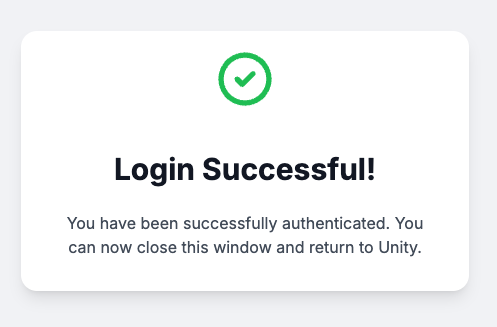
- Sign in with Google SSO. Success will show: i. "Login Successful" in the browser. ii. "Logout" replaces the "Login" button in Unity's Project Settings
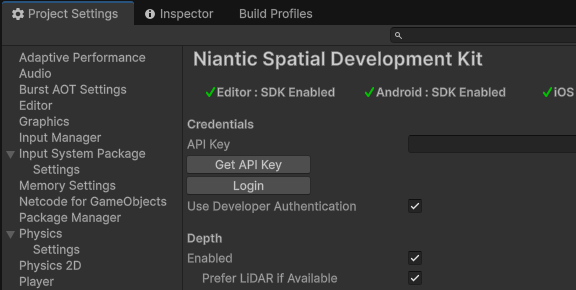
Note: API key is no longer required. If you're using token-based authentication, it should not be set.
Advanced Knowledge/Troubleshooting
Working Files
In Unity, the files that track the auth tokens are located outside of the project folder.
On MacOs, they are located at: /Users/<username>/.ardkSettings/<project ID>
On Windows, they are located at: C:\ProgramData\<project ID>
The project ID is a unique hash representing the project. There are two files:
authEditorSettings.json and authEditorBuildSettings.json. These contain the current auth tokens. If you encounter problems that can’t be resolved by other means, it may help to delete these.
There is also an asset file generated (in the assets folder): XR/Settings/AuthBuildSettings.asset. This contains the auth tokens that are used at runtime (it should normally be empty of tokens, outside of play-mode or building for-device).
Additional scripting symbols
NIANTICSPATIAL_NSDK_AUTH_DEBUG can be set for additional logging and a more verbose settings page.
Add the symbol under Scripting Define Symbols in Project Settings → Player.
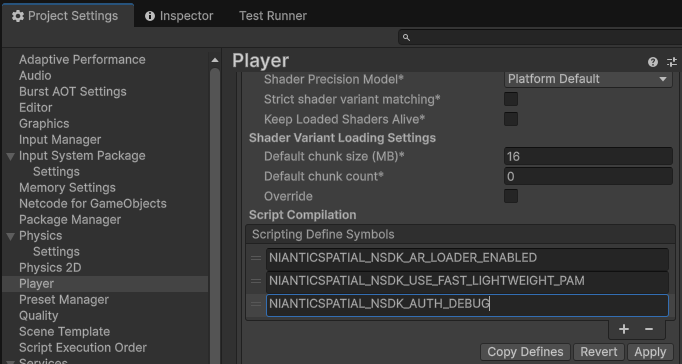
- Open the Project Settings window
- Select Player and then Other Settings
- In Player, select target platform
- Under the platform settings, select Scripting Define Symbols
- Enter
NIANTICSPATIAL_NSDK_AUTH_DEBUG - Hit Apply